 CablePilot
Demo
Demo: draw it once, the lists and the drawing set follow
A walkthrough of CablePilot with the DC battery-charger sample and the conveyor sample, under two minutes. It is the same story as the video on the website, and everything in it works in the current version: no mock-ups. The video is recorded from the real built app by a script (e2e/demo.e2e.ts), so it is made again whenever the interface changes: npm run record:demo.
Steps
- 01 Open the sample, the cover sheet and the drawing set
- 02 A coil and a contact from the library
- 03 Wire numbers and the lists that follow
- 04 The check banner finds a problem; one click fixes it
- 05 PLC I/O overview and a tag list
- 06 PDF and XLSX
- 07 Sizing from the schematic, parts from the warehouse
Step 1 Open the sample, the cover sheet and the drawing set
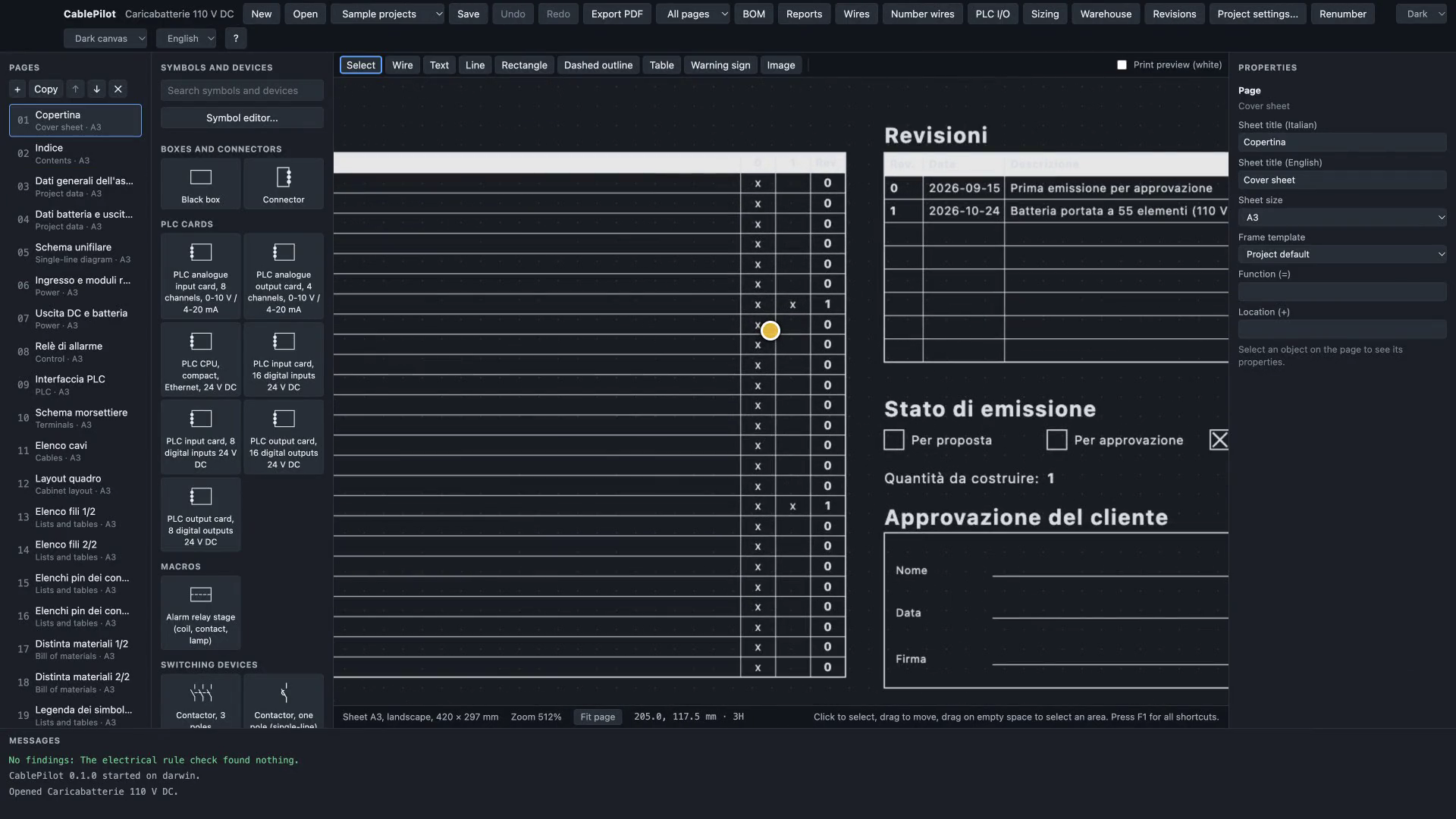
Choose Sample projects > Caricabatterie 110 V DC. The project opens on its cover sheet: the sheet index with the revision of every sheet in a revision matrix, the issue status and the customer approval block. Click through the pages in the navigator: contents, single-line diagram and the PLC interface page with its I/O card. These are the pages of the set a workshop builds from and a customer signs off, all in the project's own frame and title block.
- Sample projects ship with the app, so every feature can be shown without your own files.
- The pages are drawn in the project's drawing language (Italian here), whatever language the interface uses.
Step 2 A coil and a contact from the library
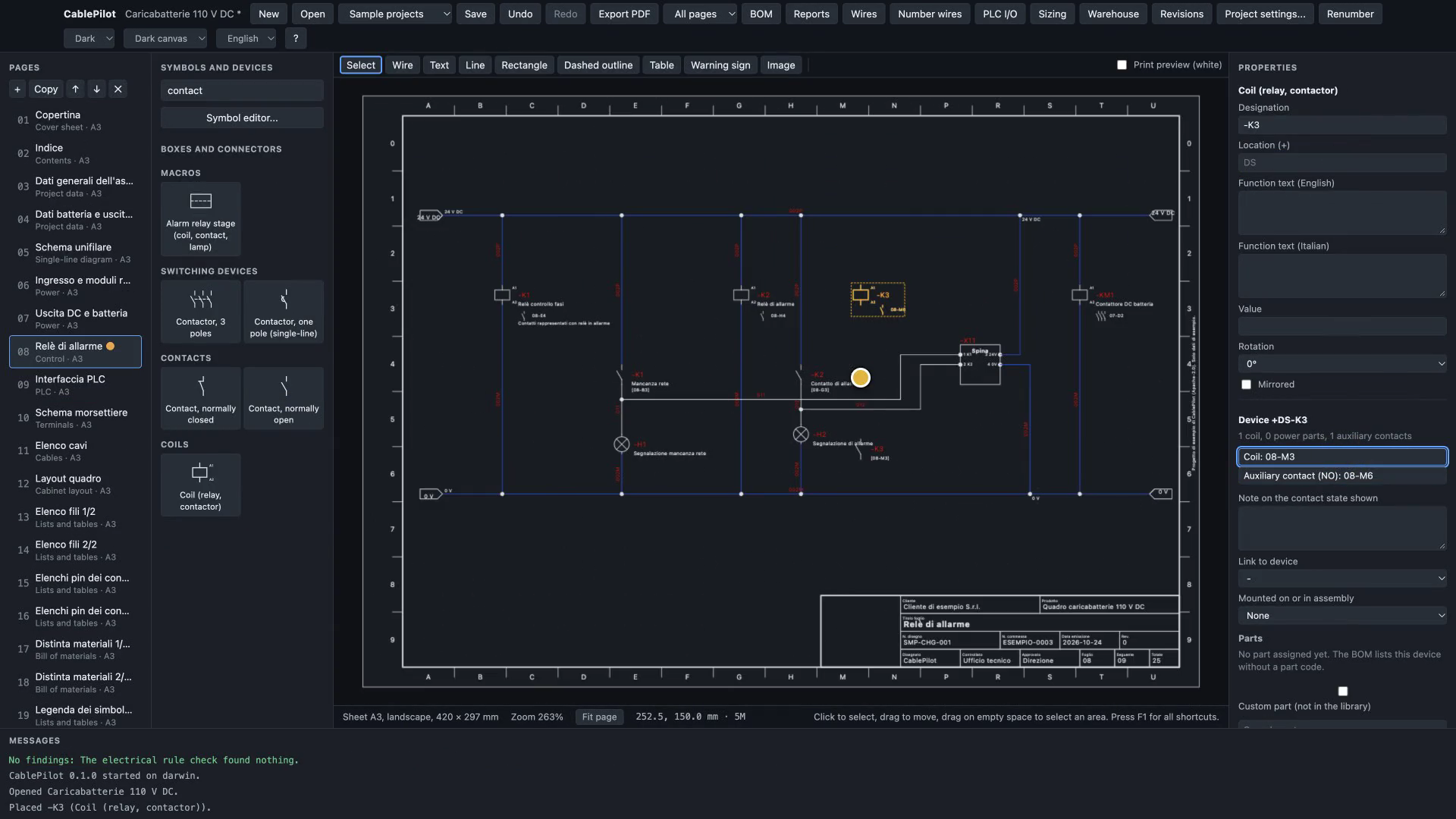
On the alarm-relay page, type coil in the symbol search and place a coil. It gets its designation by itself. Then place a normally open contact and give it the same designation: the contact joins the coil's device, and the cross-references appear on both. Assign a generic part to the device in the Properties panel.
- The designation follows IEC 81346 (=function +location -product).
- Nothing is typed twice: the device, its two symbols and its part are one entry in every list.
Step 3 Wire numbers and the lists that follow
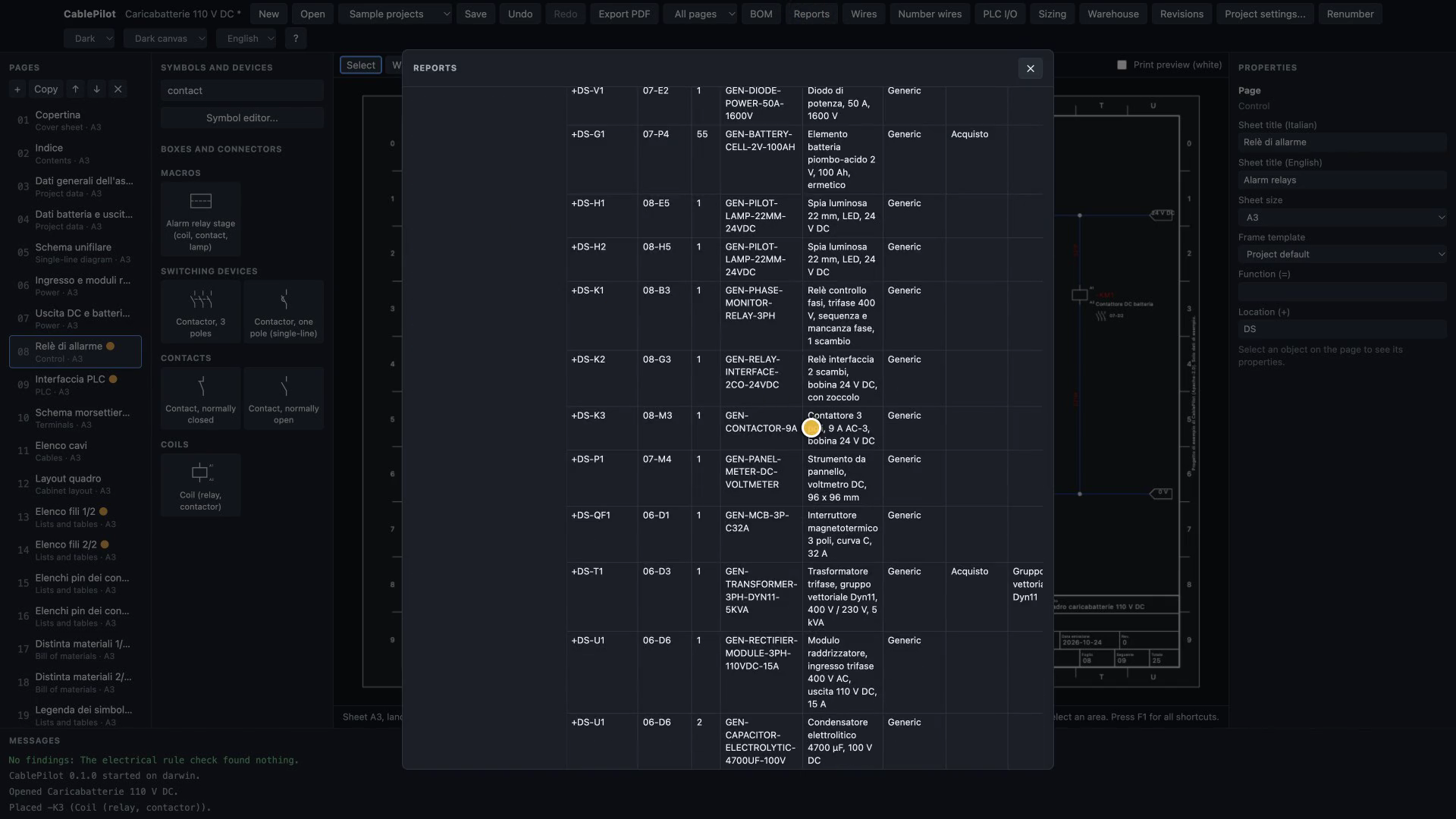
Open Wires, set the first number to 20 and click Number wires now: the wires are numbered with the pattern {n:3}{suffix} (020L+, 021L+ and so on) in one undo step. Then open Reports: the wire list shows the new numbers and the bill of materials already counts the contactor you just placed. All lists are generated from the schematic and update with it.
- The company wire-class table is editable in the Wires window; numbers typed by hand stay.
- The same lists can be added to the drawing set as pages.
Step 4 The check banner finds a problem; one click fixes it
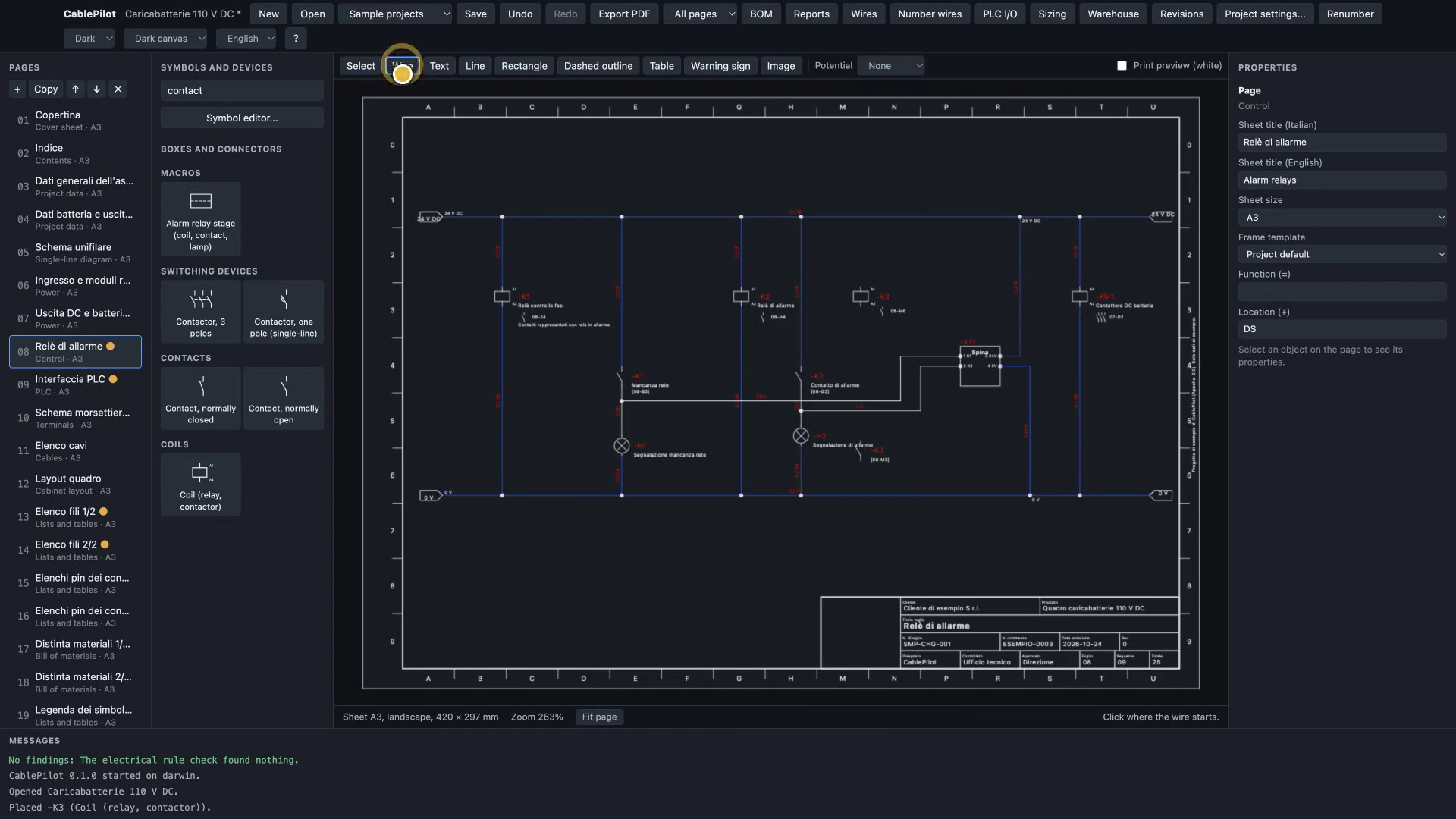
Draw a wire that connects to nothing. The warnings banner appears at once with the finding, its rule and its standard. Click the fix: the stray wire is removed, the banner goes away, and the whole thing is one undo step.
- The electrical rule check runs continuously; findings also show as markers on the page.
- Fix all that can be fixed applies every plain fix in one step.
Step 5 PLC I/O overview and a tag list
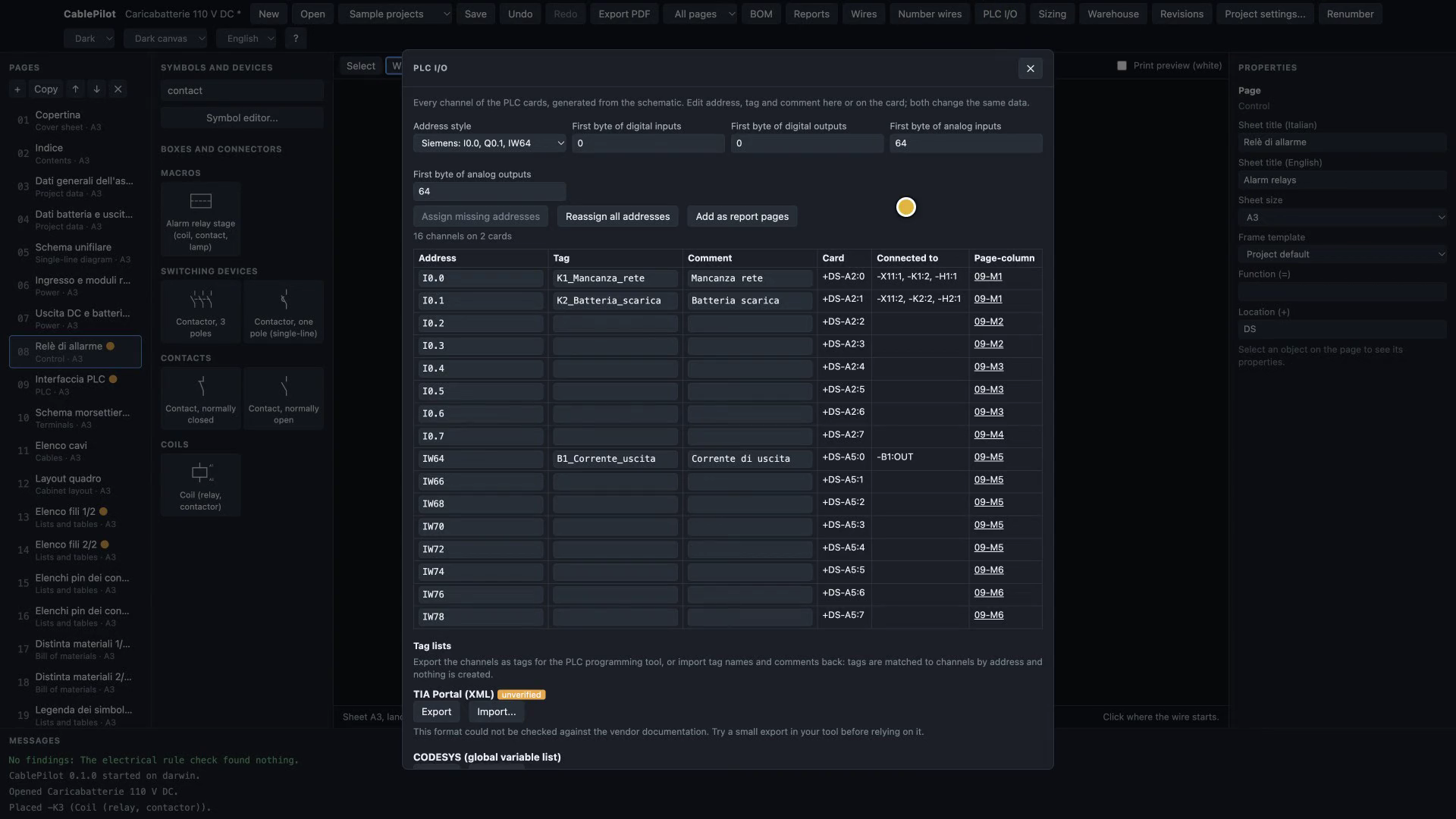
Open PLC I/O: every channel of the PLC cards with its address, tag, comment, what it is wired to and where it is drawn, live from the schematic. Edit a tag here and the card on the PLC page shows it; edit it on the card and it changes here. Export writes the tag list for CODESYS (a global variable list) or TIA Portal (XML, marked unverified until it has been checked against Siemens' documentation).
- Addresses follow a scheme you configure (Siemens or IEC 61131-3 notation, first byte of each area).
- Importing a tag list is previewed first and applied as one undo step.
Step 6 PDF and XLSX
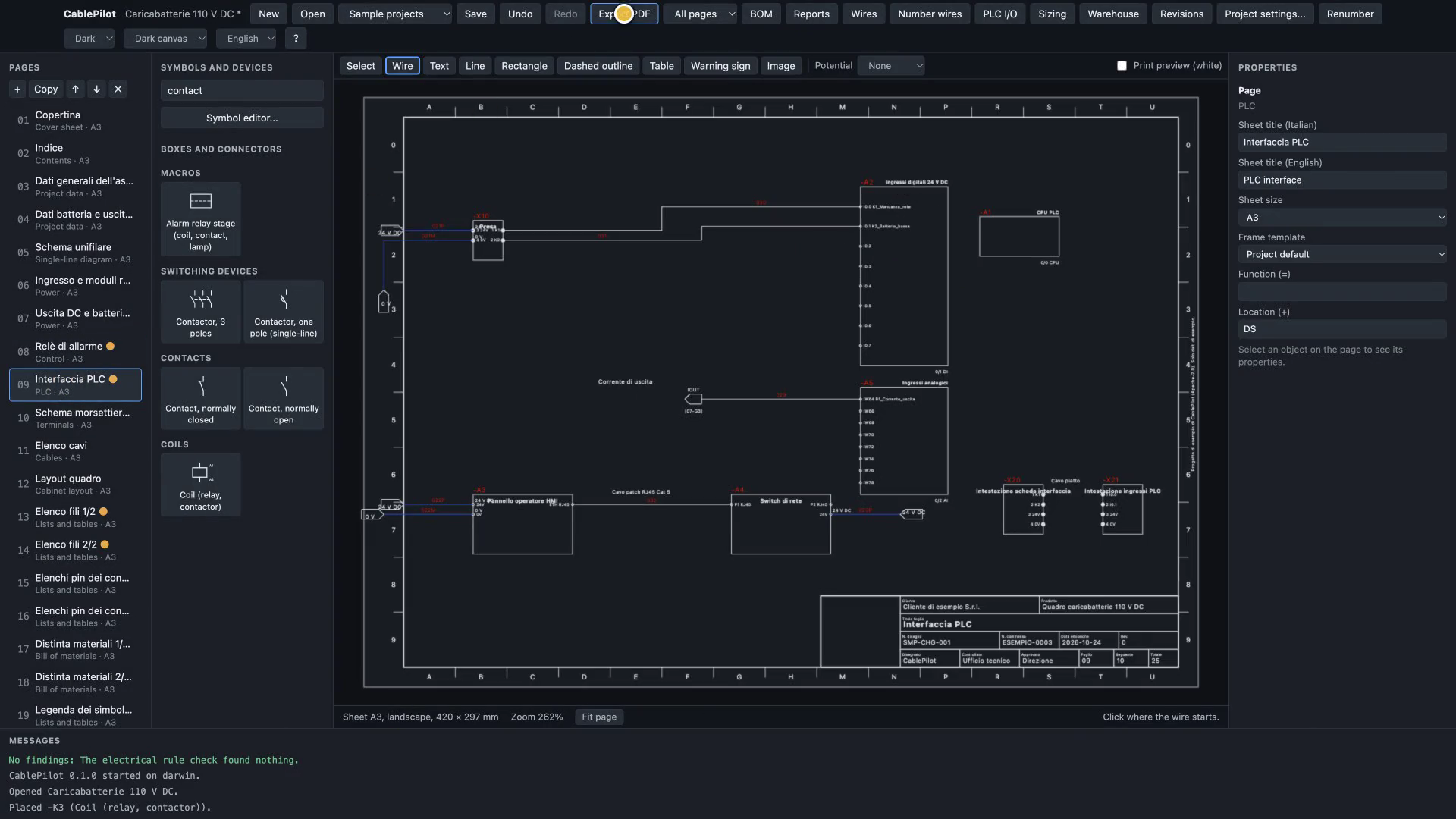
Export PDF writes the complete drawing set (vector, text embedded), and Export all lists as XLSX writes every list, the PLC I/O list included, as one workbook.
- Files belong to you: an open project format, PDF and XLSX out, no account.
Step 7 Sizing from the schematic, parts from the warehouse
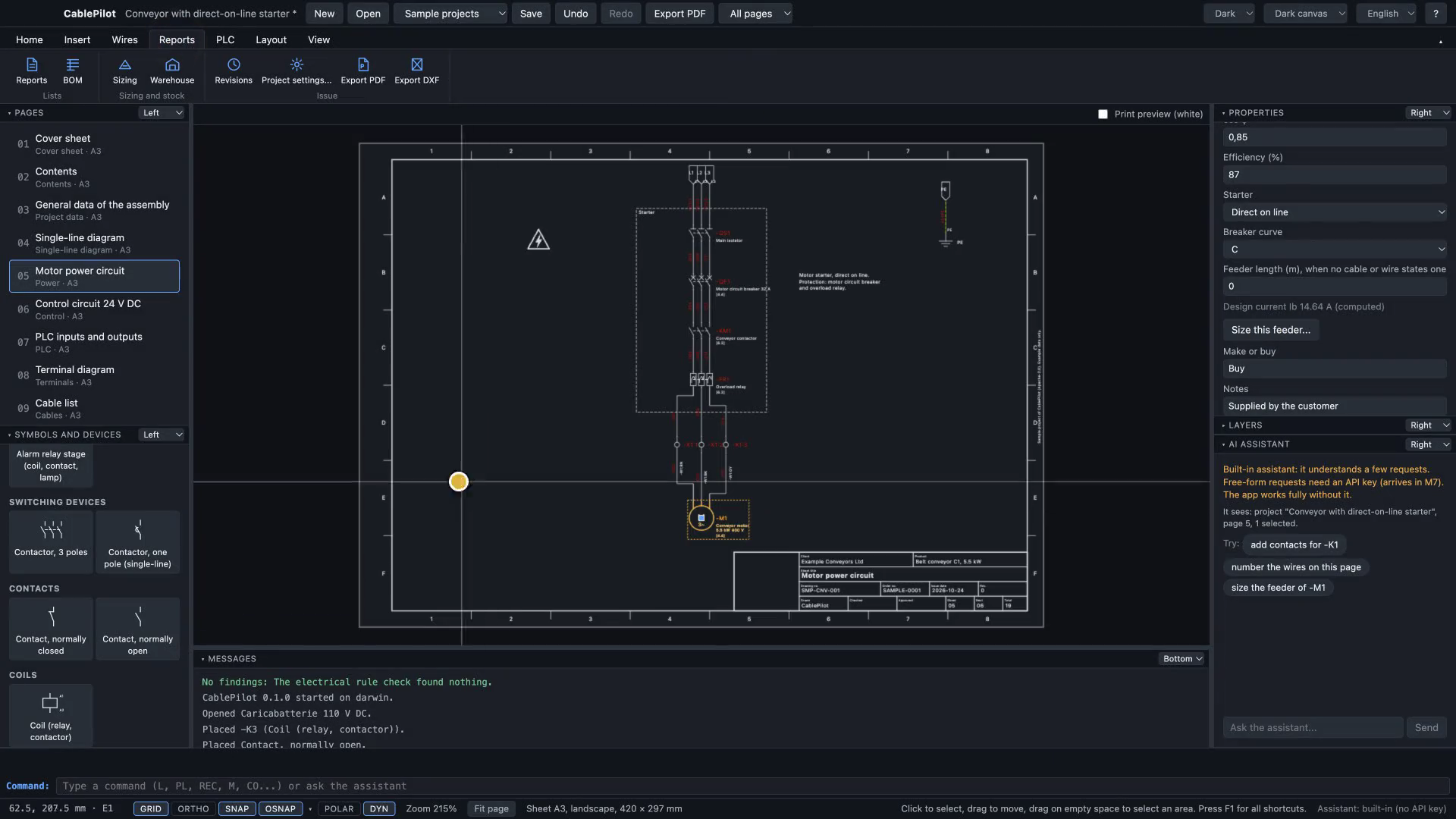
Open the conveyor sample, open Warehouse and load the sample stock list (your own file comes from a CSV or XLSX export of your warehouse system, through a column mapping saved for your company). Select the motor on the power page and raise its rated power to 7.5 kW in the Properties panel: the design current is recomputed. Size this feeder lists the breaker, contactor, overload relay, cable and wires found in the schematic, each with its requirement. The contactor no longer meets it: open its suggestions to see the requirement, its assumptions and the parts that meet it, ranked by what the warehouse has for this project, with warehouse, location and the quantity available (on hand, minus reserved, minus what the project already uses). Select the part in stock and confirm: the BOM shows the new part with its on-hand and available quantities.
- Sizing is computed from the project data and says what it assumes; table values that have not been checked against the standard yet are flagged, and no result replaces the engineer's verification. - Confirming a line is one undo step, and Accept all proposals is one undo step for the whole project.
The video ends on the cover sheet of the conveyor sample.
Try it yourself
Download CablePilot, open the battery-charger sample from the toolbar and follow the steps above. Free, open source, and your files stay yours.